
Thanks so much for joining Our mailing list.
Our welcome email should be in your inbox in less than 5 mins
To ensure you don’t miss my email, you would need to whitelist our email addresses and ensure that you always get our emails in your primary inbox:
Here are the steps to take if you are using GMAIL (Mobile)
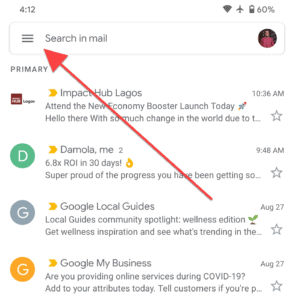
Open your gmail app and select the hamburger menu.
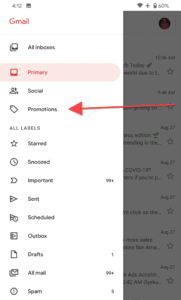
Click on Promotions. If you don’t see my email in promotions tab, click on spam and continue the process.
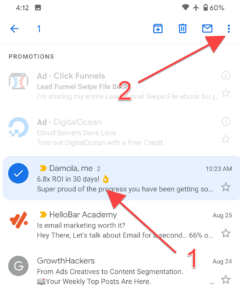
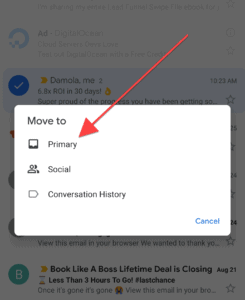
Search for my email (You can simply search for my name, “Damola”), highlight the email and click on the 3 dots at the top right corner.
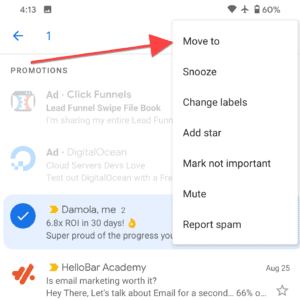
Select Move To
Select Primary, and you are done!
Here are the steps to take if you are using GMAIL (Desktop)
Look for my email in your Inbox, Promotions or Spam folder and open it
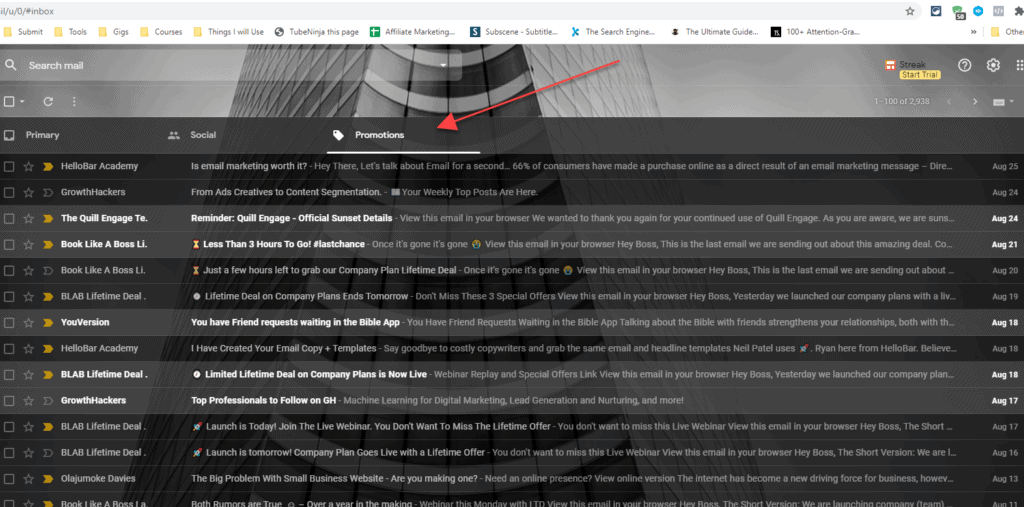
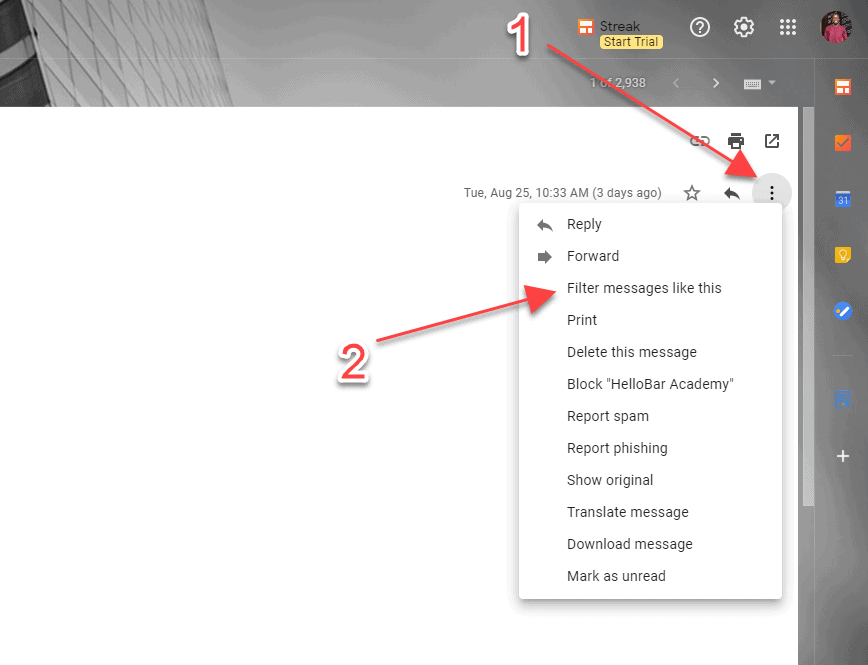
2. Open the email, click the 3 dots to your right and select “Filter messages like this”
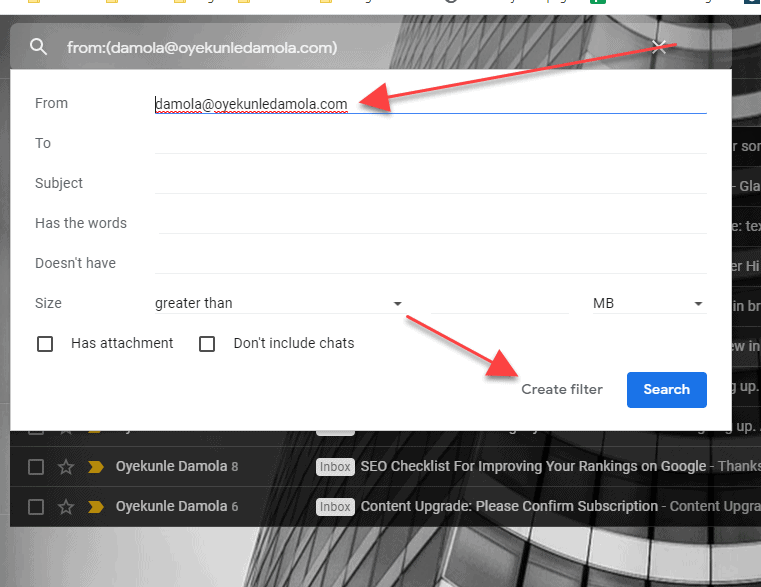
Make sure the my email address (laz@whiztech.net OR support@whiztech.net) is in the from text field and select “Create Filter”
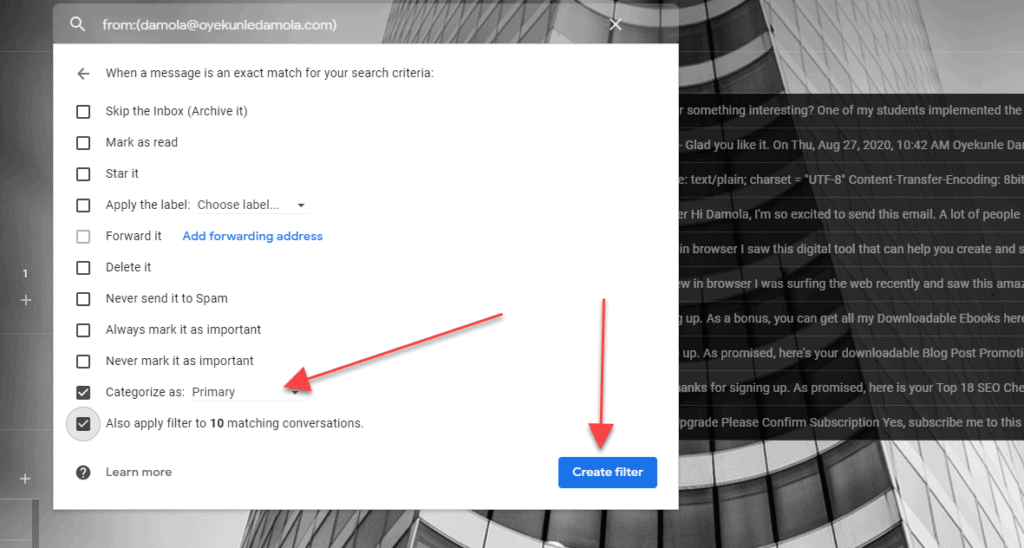
Check the “Categories as” box and select Primary as shown in the image below. Also Check the “Also apply filter to… matching conversations, (if any)” then click Create filter

Here are the steps to take if you are using Yahoo
If you do not see an email from laz@whiztech.net or info@whiztech.net in your Inbox…
Check your Spam Folder.
If an email from laz@whiztech.net or
info@whiztech.net is there, follow the next steps
- – Please open the email.
- – Next click the Not Spam button on the top toolbar.
To ensure delivery: Create a filter to automatically send email from laz@whiztech.net or support@whiztech.net to your Inbox.
- – Move your mouse over or tap the Gear icon in the top right navigation bar.
- – Select Settings from the list that drops down.
- – Choose Filters located on the left side of the page.
- – Click the Add button on the Filters page.
- – Create a name such as Whitelist in the Filter name field.
- – In the From field leave the default contains selected.
- – Enter our email address laz@whiztech.net or
info@whiztech.net in the text box next to Contains…
- – Choose the destination folder to which you would like the message delivered. For example: Inbox.
- – Click or tap Save…
- – You will see in the next screen -Deliver to Inbox if From contains laz@whiztech.net or
info@whiztech.net–
- – Click or tap Save on this screen.
- – You will be returned to your Yahoo! Inbox.
If you have any questions or you have still not received my email, please email me via laz@whiztech.net or support@whiztech.net
